You’re not rich until you have something that money can’t buy… #time #love #respect #mindstormGR




This is a step-by-step action plan for creating an educational blog, mapped directly to each stage of a decision-making process. This translates abstract decision steps into practical actions you can actually do. Receiving Information Actions to take: Identify your goal for the educational blog (e.g., teach skills, support students, share research). Collect information about: Your target audience (age, education level, needs, problems). Existing educational blogs in your niche. Common questions and learning gaps in your subject area. Gather internal information: Your expertise, available time, budget, and technical skills. Collect external information: Trends in education (online learning, micro-learning, AI tools, etc.). Evaluating Relevance, Quality, and Quantity of Information Actions to take: Filter the collected information by asking: Is this information useful for my blog goal? Is the source credible and up to date? Remove irrelevant or outdated data. Prioritize information that: Directly addresses learner needs. Shows proven success (high-traffic blogs, strong…


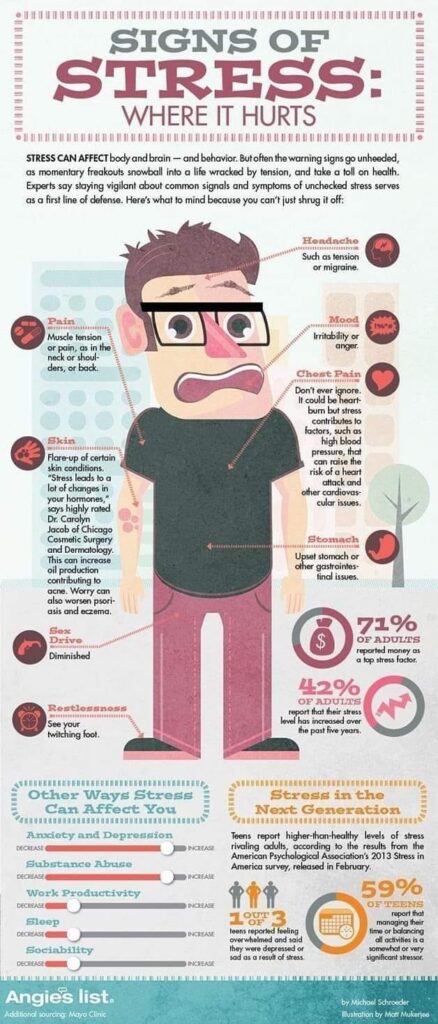
Το στρες επιδρά στο μυαλό και στο σώμα. Αλλάζει και τη συμπεριφορά του ατόμου. 71% των ανθρώπων που συμμετείχαν στην έρευνα είπαν ότι το στρες που έχουν οφείλεται κυρίως στην έλλειψη χρημάτων (top stress factor). Μερικά σημάδια που δείχνουν ότι κάτι δεν πάει καλά. – Κεφαλαλγίες – Μυϊκοί πόνοι (λαιμός, μέση, πλάτη, στήθος) – Στομαχικοί πόνοι – Δερματοπάθειες – Εκρήξεις θυμού – Έλλειψη διάθεσης για sex FB Tags: #stress #άγχος #υγεία
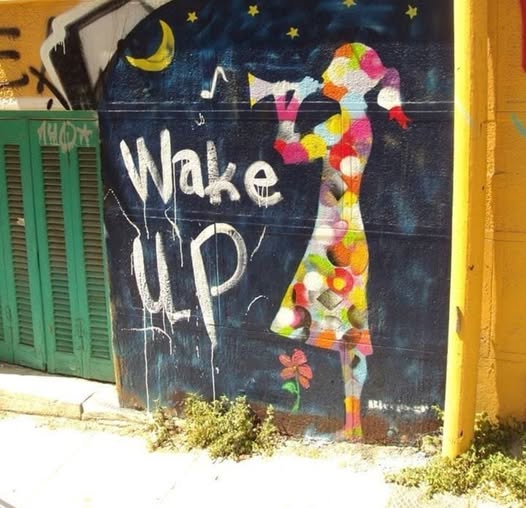
The truth is hard to know. The truth is hard to find. The truth is hard to hear. The truth is hard to believe. The truth is hard to accept. The truth is hard to deny. The truth is more important now. New York Times *All the above is true. But my dear, do not forget that the lie is easy to get. Let alone that it is much cheaper. So choose carefully what you read. Because what you read is what you then think. And what you think, might wake you up or send you back to sleep. My advice to you is this. Keep searching for the truth and think carefully who writes about what and when.
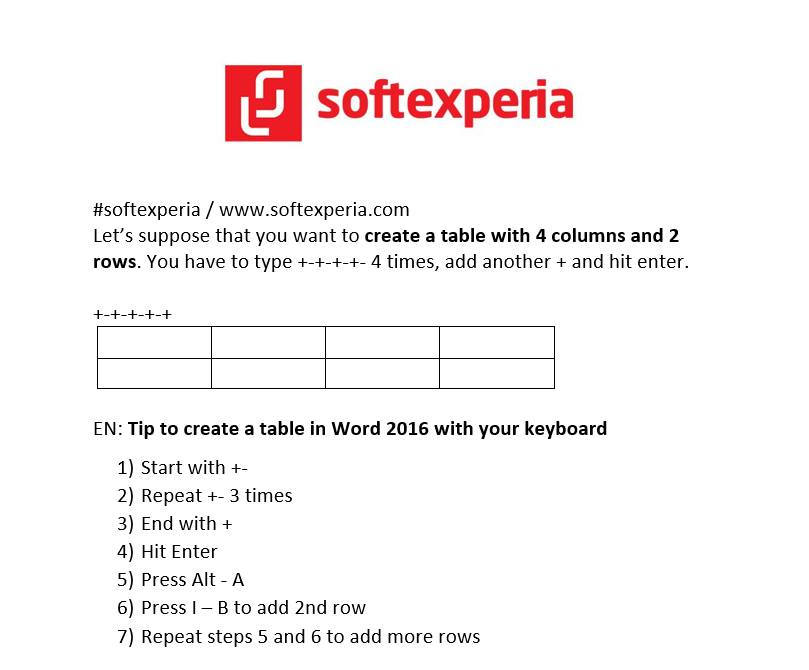
#softexperia / www.softexperia.com Let’s suppose that you want to create a table with 4 columns and 2 rows in Word. You have to type +-+-+-+- 4 times, add another + and hit enter. +-+-+-+-+ EN: Tip to create a table in Word 2016 with your keyboard 1) Start with +- 2) Repeat +- 3 times 3) End with + 4) Hit Enter 5) Press Alt – A 6) Press I – B to add 2nd row 7) Repeat steps 5 and 6 to add more rows GR: Συνδυασμός πλήκτρων για να δημιουργήσεις γρήγορα έναν πίνακα στο Word 2016 1) Ξεκίνα με +- 2) Πρόσθεσε +- 3 φορές 3) Τελείωσε με + 4) Πάτησε το Enter 5) Πάτησε το συνδυασμό πλήκτρων Alt – A για να μαρκάρεις την 1η γραμμή του πίνακα 6) Πάτησε το συνδυασμό πλήκτρων I – B για να προσθέσεις 2η γραμμή 7) Επανέλαβε τα βήματα 5 και…
Create 4 Pivot Tables with a button (VBA) Sales Data Analysis Total Sales by Country Total Sales by Salesperson Total Sales by Customer Total Sales by Product Category Facebook video: https://www.facebook.com/trifon.papadopoulos.5/videos/1071587840499690 #vba #data_analysis #excel_tips #mindstormGR / www.mindstorm.gr



GR – Ένα ποτήρι νερό και όμως τόσες πολλές οπτικές και αναγνώσεις. Εδώ π.χ. βλέπετε 9 απ’ αυτές. Την αισιόδοξη, την απαισιόδοξη, τη ρεαλιστική, τη φυσική, τη σουρεάλ, τη σχετική, την ουτοπιστική, τη σκεπτικιστική και την καλλιτεχνική. Άντε να συνεννοηθούμε. Τελικά είναι πολύ εύκολο ή μάλλον αρκετά δύσκολο να επικοινωνήσουμε, να καταλάβουμε και να πράξουμε. EN – It is only a glass of water and people see it in so many different ways. Here you see 9 of them. Is it so easy or so difficult to communicate, understand and act after all? #softexperia
