
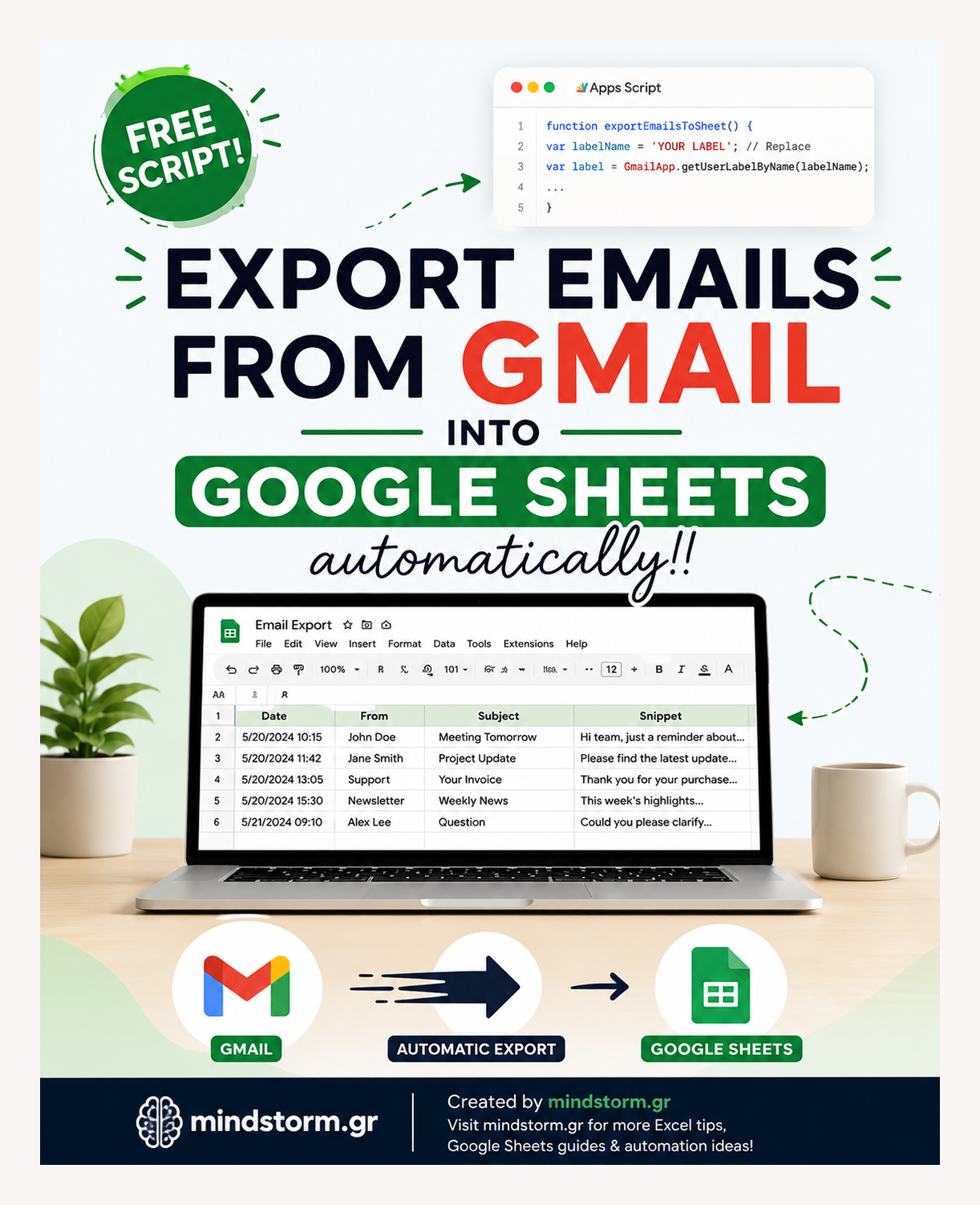
If you’ve ever wanted to organize your emails into a Google Sheet, automatically categorize and track conversations, or extract specific details from your inbox, you’re in the right place!
Google Apps Script allows you to easily export emails from Gmail and organize them in Google Sheets without manually copying and pasting.
In this post, we’ll walk you through creating a simple Gmail-to-Google Sheets integration using Google Apps Script.
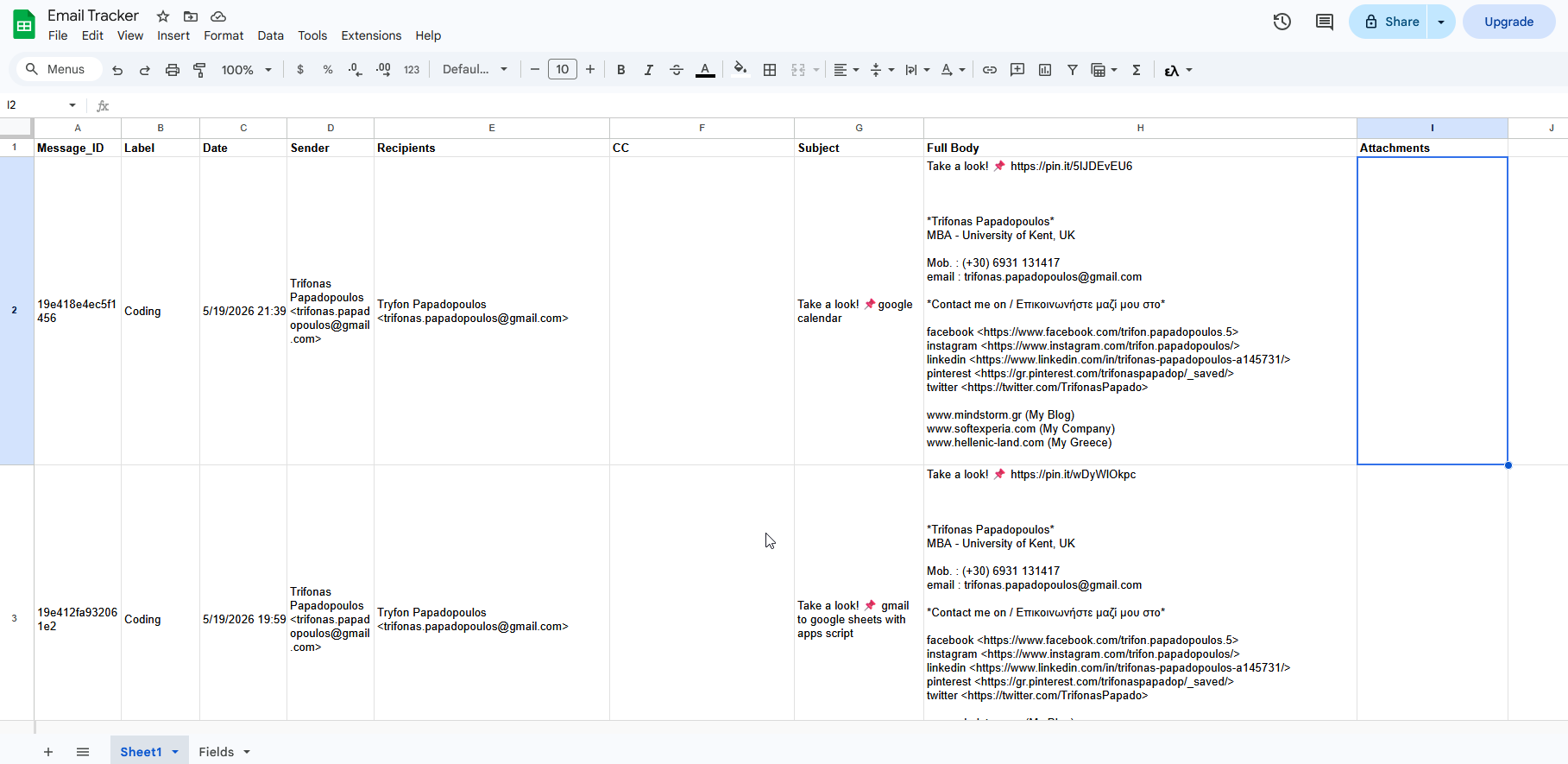
This will allow you to extract emails with a specific Gmail label, along with various details such as the sender, subject, date, and even the entire email body.
Why Export Emails to Google Sheets?
Managing emails can be tedious, especially if you’re dealing with hundreds of messages. Exporting emails into Google Sheets gives you the power to:
- Track specific conversations: Extract emails by labels such as “Work” or “Important.”
- Analyze email data: Identify patterns or trends in communication.
- Organize data for easy access: Store email details for later reference, without digging through your inbox.
How to Export Emails to Google Sheets?
First you will need to make sure you labeled your emails in Gmail. If you don’t know how to do it, you can read this post on How to Label Your Emails in Gmail for Better Organization.
Once your emails have been labeled, follow the steps below:
Step 1: Create Your Google Sheet
- Open Google Sheets.
- Name the sheet appropriately, such as “Email Tracker.”
- You’ll use this sheet as the destination for the email data.
Step 2: Open Apps Script in Google Sheets
- In your Google Sheet, click on Extensions > Apps Script.
- This will open the Google Apps Script editor where you can write code to pull emails.
Step 3: Copy the Script to Extract Gmail Emails
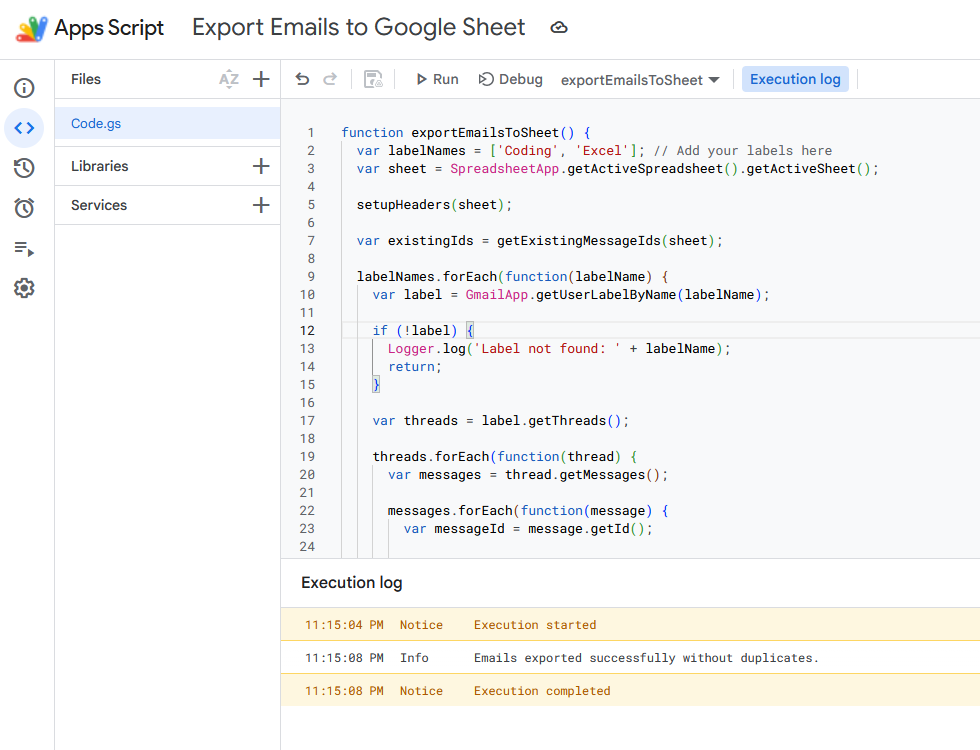
In this example, I’ll be using the “Coding” label, which we use to filter all emails related to comments on our YouTube channel.
Here’s a script that extracts emails from Gmail, based on a specific Gmail label.
View the Google Apps Script Version 2 -> HTML Export
Adding Automation: Schedule the Script to Run Daily
Wouldn’t it be great if this process was fully automated? We got ya! You can set up the script to run daily, capturing new emails and appending them to your Google Sheet. Here’s how to automate the script:
1. In the Apps Script editor, click on the clock icon in the left sidebar (Triggers).
2. Click the + Add Trigger button.
3. Set it up like this:
-
- Choose which function to run: exportEmailsToSheet
-
- Select event source: Time-driven
-
- Select type of time-based trigger: Day timer
-
- Select time of day: Choose the time you prefer (e.g., every morning at 9 AM).
Now, the script will run every day, automatically updating your Google Sheet with the latest emails under the specific Gmail label.
What Data Can You Extract from Gmail?
With Google Apps Script, you can extract various pieces of information from each email. Here’s a list of some of the data points you can pull into Google Sheets:
-
- Date: When the email was sent (getDate()).
-
- Sender: The email address of the sender (getFrom()).
-
- Recipients: The email addresses of the recipients (getTo()).
-
- CC: CC recipients (getCc()).
-
- BCC: BCC recipients (getBcc()).
-
- Subject: The subject of the email (getSubject()).
-
- Body (Plain Text): The plain text body of the email (getPlainBody()).
-
- Body (HTML): The HTML version of the email body (getBody()).
-
- Snippet: A short preview of the email (getSnippet()).
-
- Thread ID: The unique identifier for the email thread (getThread().getId()).
-
- Message ID: The unique identifier for the individual email (getId()).
-
- Starred: Whether the email is starred (isStarred()).
-
- Unread: Whether the email is unread (isUnread()).
-
- Important: Whether the email is marked as important (isImportant()).
-
- Attachments: The file names of email attachments (getAttachments()).
You can customize the script further to extract only the data that’s relevant to your needs



Comments are closed.