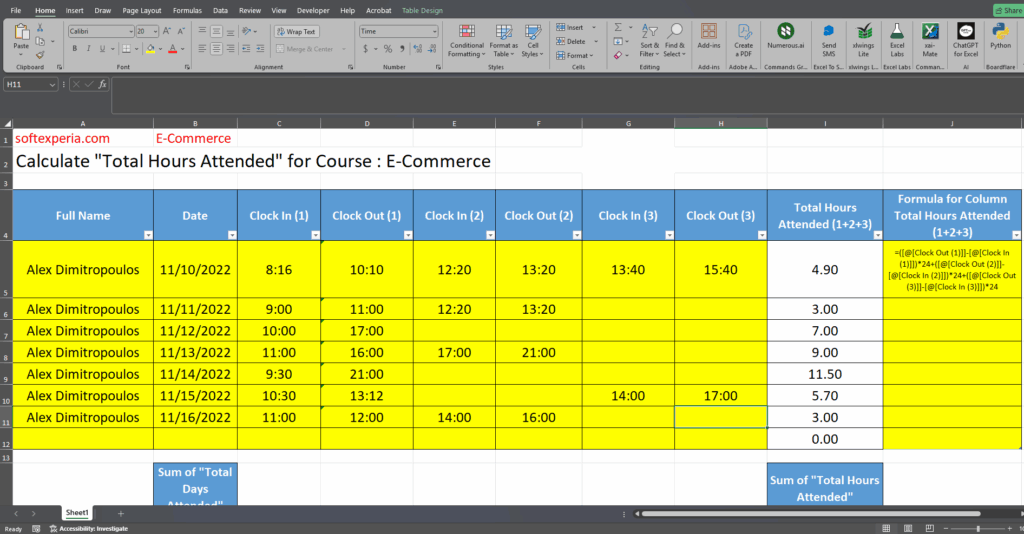
Calculation of Total Hours Attended and Total Days Attended Υπολογισμός συνολικών ωρών και συνολικών ημερών παρακολούθησης ενός προγράμματος εκπαίδευσης Facebook video Download excel file: calculate_hours_attended.xlsx #softexperia #excel_tips

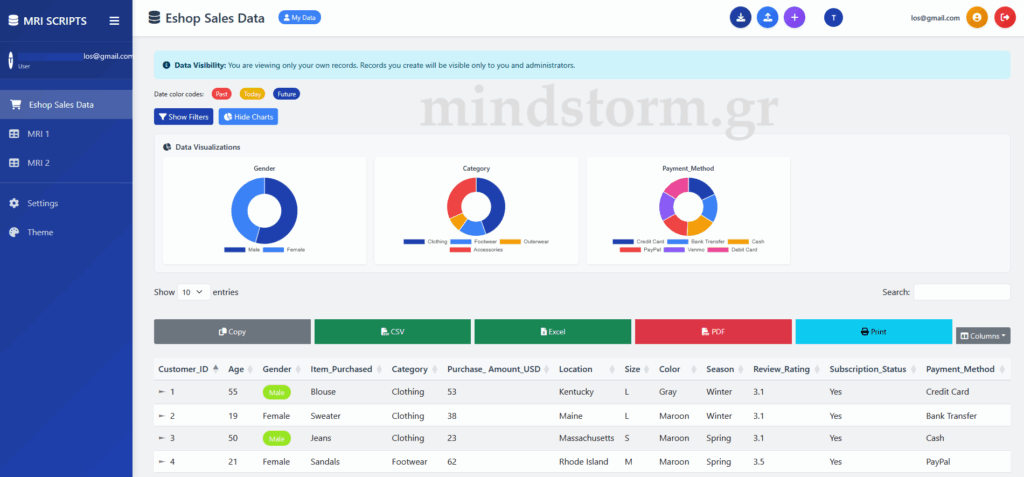
EN – Unlock the Power of Your Sales Data Modern. Insightful. Effortless. Transform the way your company understands its customers with the E-Shop Sales Data Dashboard—a beautifully designed analytics solution that turns every transaction into meaningful insights. Discover What Drives Your Business Get instant clarity with real-time visualizations that reveal: Who your customers are What they buy How they pay Which products perform best Interactive doughnut and pie charts give you a vibrant snapshot of your store’s performance—no spreadsheets, no manual work. Make Smarter, Faster Decisions With a powerful filtering engine, you can drill down into any detail: Sort by dates, customer attributes, or product categories Highlight trends with intuitive color-coded timelines Instantly reveal hidden opportunities and patterns Your data—organized, simplified, and ready for action. Export & Share with One Click Whether you’re presenting to stakeholders or analyzing weekly results, exporting has never been easier.Generate reports in: CSV Excel PDF…
Η δημιουργία ενός ερωτηματολογίου όπως και η ανάλυση των συμπληρωμένων απαντήσεων είναι μια δουλειά που θέλει ιδιαίτερη προσοχή. Γιατί πρώτον, η σωστή σύνταξη των ερωτήσεων βοηθά στην εύκολη συμπλήρωση των απαντήσεων από το κοινό και δεύτερον, η ανάλυση των απαντήσεων αυξάνει τις πιθανότητες επιτυχίας των μετέπειτα επιχειρηματικών επιλογών μας. Δείτε παρακάτω ένα ερωτηματολόγιο σχετικά με την κατανάλωση οίνου το οποίο μπορεί να διατεθεί σε τυχαίο δείγμα μιας γεωγραφικής περιοχής (διαφόρων ηλικιών και ποικίλων οικονομικών κατηγοριών). Ενδεικτικός αριθμός ατόμων : 100 Ενδεικτικός χρόνος συμπλήρωσης : 2-4 λεπτά χωρίς τη βοήθεια άλλου προσώπου. Με την ολοκλήρωση των ερωτηματολογίων γίνεται ανάλυση των απαντήσεων με τη βοήθεια κατάλληλου λογισμικού ή υπολογιστικών φύλλων. Ερωτηματολόγιο A.Προσωπικά στοιχεία 1.Φύλο Άνδρας Γυναίκα 2.Ηλικία < 18 18-24 25-40 41-65 >65 3.Οικογενειακή κατάσταση Άγαμος Έγγαμος Έγγαμος με τέκνα 4.Μορφωτικό επίπεδο Δευτεροβάθμια εκπαίδευση ΙΕΚ ΑΕΙ ΤΕΙ Μεταπτυχιακός τίτλος Διδακτορικό 5.Τόπος διαμονής Χωριό Κωμόπολη Πόλη 6.Απασχόληση Δημόσιο Ιδιωτικός τομέας Ελεύθερος επαγγελματίας 7.Ετήσιο…
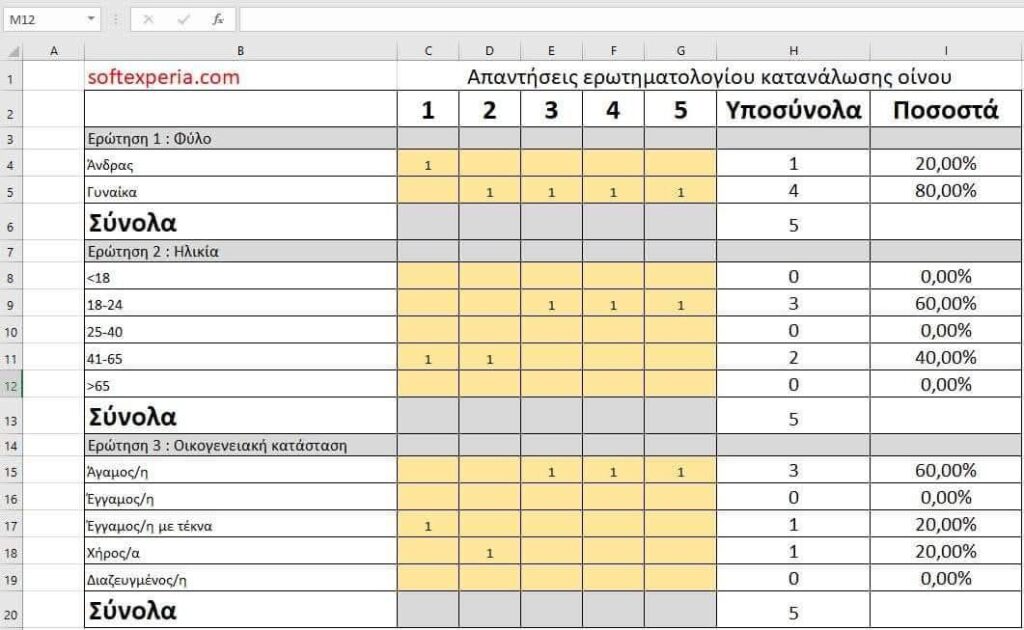
Η δημιουργία ενός ερωτηματολογίου όπως και η ανάλυση των συμπληρωμένων απαντήσεων είναι μια δουλειά που θέλει ιδιαίτερη προσοχή. Γιατί πρώτον, η σωστή σύνταξη των ερωτήσεων βοηθά στην εύκολη συμπλήρωση των απαντήσεων από το κοινό και δεύτερον, η ανάλυση των απαντήσεων αυξάνει τις πιθανότητες επιτυχίας των μετέπειτα επιχειρηματικών επιλογών μας. Δείτε ενδεικτικά την ανάλυση μερικών προσωπικών στοιχείων των απαντήσεων των 5 πρώτων ανθρώπων (ερωτηματολόγιο κατανάλωσης οίνου) το οποίο διατέθηκε σε τυχαίο δείγμα μιας γεωγρ. περιοχής (διαφόρων ηλικιών και ποικίλων οικον. κατηγοριών). Συνολικός αρ. ατόμων : 100 Ενδεικτ. χρόνος συμπλήρωσης : 2-4 min χωρίς τη βοήθεια άλλου προσώπου. Η ανάλυση των απαντήσεων στο συγκεκριμένο παράδειγμα γίνεται με τη βοήθεια υπολογ. φύλλων (excel). Ερωτηματολόγιο Α. Προσωπ. στοιχεία 1.Φύλο Άνδρας Γυναίκα 2.Ηλικία < 18 18-24 25-40 41-65 >65 3.Οικογενειακή κατάσταση Άγαμος/η Έγγαμος/η Έγγαμος/η με τέκνα Χήρος/α Διαζευγμένος/η Αναλαμβάνουμε κατόπιν συμφωνίας τη δημιουργία απλών ή σύνθετων ερωτηματολογίων καθώς και την ανάλυση των αποτελεσμάτων τους. Επικοινωνήστε…

Simple data analysis of sales with filters, pivot table and charts Filters: ->Filter Electronics ->Filter Clothing ->Filter Quantity Sold<70 ->Filter Price>50 ->No filters Pivot table : ->Revenue per Category Charts : ->Revenue per Product Name ->Quantity sold per Product Name ->Revenue per Category Filename: simple_data_analysis.xlsm View Facebook post Download simple_data_analysis.zip (includes simple_data_analysis.xlsm)

Μελλοντική αξία (FV) ενός σημερινού ποσού Παρούσα αξία (PV) ενός μελλοντικού ποσού Παράδειγμα Μελλοντικής Αξίας (Future Value – FV) Σενάριο: Έχεις σήμερα 5.000 € και τα καταθέτεις σε μια τράπεζα με ετήσιο επιτόκιο 4%, για 5 χρόνια, με ετήσιο ανατοκισμό. Θέλεις να βρεις: Πόσα θα έχεις στο τέλος των 5 ετών; Βήμα 1: Γράφουμε τα δεδομένα Παρούσα αξία (PV) = 5.000 € Επιτόκιο (r) = 4% = 0,04 Περίοδοι (n) = 5 έτη Ζητούμενο: Μελλοντική αξία (FV) Βήμα 2: Τύπος μελλοντικής αξίας Βήμα 3: Αντικαθιστούμε τα δεδομένα Βήμα 4: Ερμηνεία Αν επενδύσεις 5.000 € σήμερα με επιτόκιο 4% για 5 χρόνια, στο τέλος θα έχεις περίπου 6.083,26 €. Η διαφορά 6.083,26 – 5.000 = 1.083,26 € είναι οι τόκοι που κέρδισες συνολικά (και περιλαμβάνουν και τον ανατοκισμό). Παράδειγμα Παρούσας Αξίας (Present Value – PV) Σενάριο: Σου υπόσχονται ότι θα λάβεις 10.000 € σε 3 χρόνια. Το κατάλληλο προεξοφλητικό επιτόκιο (δηλαδή…

– Ερ. Με τι ασχολείσαι τελευταία; – Απ. Διαβάζω για τα ρήματα ζαλίζω, ποτίζω, καθορίζω και καθαρίζω. Προσπαθώ να καταλάβω τη διαφορά μεταξύ ενεργητικής και παθητικής φωνής. Άλλο το ζαλίζω και άλλο το ζαλίζομαι. Άλλο το ποτίζω και άλλο το ποτίζομαι. Αλλο το καθορίζω και άλλο το καθορίζομαι. Άλλο το καθαρίζω και άλλο το καθαρίζομαι.

Επίσης Αυτός που θέλει, πάει. Αυτός που δεν θέλει, δεν πάει. Αυτός που θέλει, ξυπνάει. Αυτός που δεν θέλει, κοιμάται. Αυτός που θέλει, θυμάται. Αυτός που δεν θέλει, ξεχνάει. Αυτός που θέλει, κάνει φατσούλες. Αυτός που δεν θέλει, κάνει γκριματσούλες. Αυτός που θέλει, περιμένει. Αυτός που δεν θέλει, βιάζεται. #mindstormGR
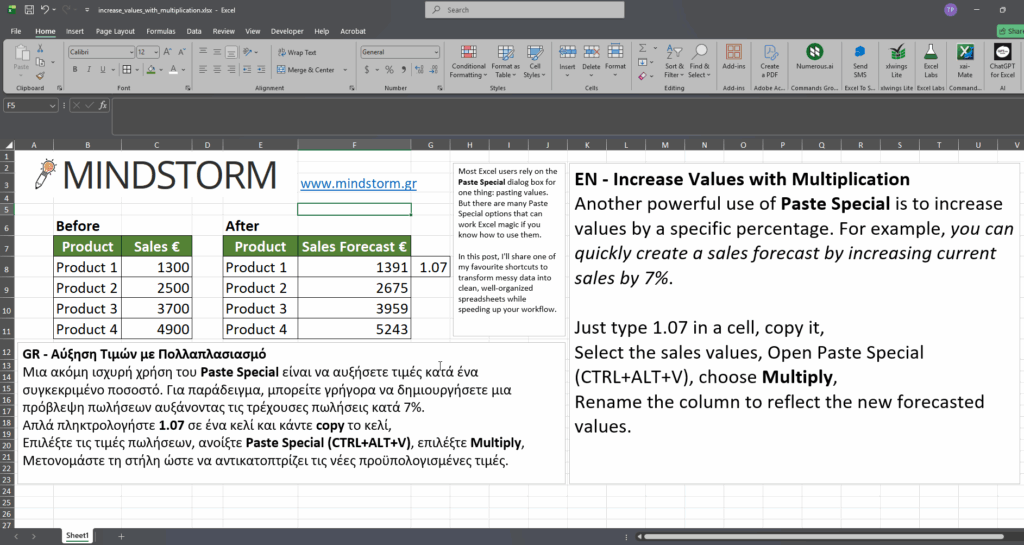
Most Excel users rely on the Paste Special dialog box for one thing: pasting values. But there are many Paste Special options that can work Excel magic if you know how to use them. In this post, I’ll share one of my favourite shortcuts to transform messy data into clean, well-organized spreadsheets while speeding up your workflow. EN – Increase Values with Multiplication Another powerful use of Paste Special is to increase values by a specific percentage. For example, you can quickly create a sales forecast by increasing current sales by 7%. Just type 1.07 in a cell, copy it, Select the sales values, Open Paste Special (CTRL+ALT+V), choose Multiply, Rename the column to reflect the new forecasted values. GR – Αύξηση Τιμών με Πολλαπλασιασμό Μια ακόμη ισχυρή χρήση του Paste Special είναι να αυξήσετε τιμές κατά ένα συγκεκριμένο ποσοστό. Για παράδειγμα, μπορείτε γρήγορα να δημιουργήσετε μια πρόβλεψη πωλήσεων αυξάνοντας…
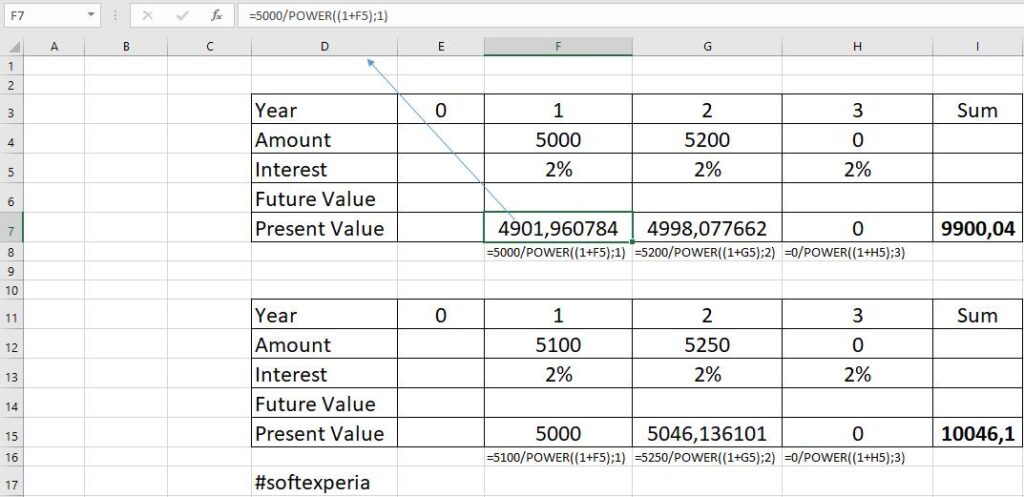
Χρηματοοικονομικά μαθηματικά – Ράντες Ράντα καλούμε ένα σύνολο χρηματικών ποσών που καταβάλλονται, δηλαδή γίνεται κατάθεση ή ανάληψη αυτών, ανά ίσα χρονικά διαστήματα. Ο όρος ράντα έχει προέλθει από το Λατινικό όρο Reddita. Στην αγγλική γλώσσα, ο αντίστοιχος όρος είναι Rent ή Annuity. Ένας ελληνικός όρος που θα μπορούσε να αποδώσει καλύτερα την έννοια αυτή είναι χρηματοσειρά ή χρηματοροή, διότι όπως θα δούμε στη συνέχεια οι ράντες αποτελούνται πράγματι από σειρές χρηματικών καταθέσεων ή πληρωμών. Τα προβλήματα που αναφέρονται σε ράντες είναι συνήθως δημιουργία κεφαλαίου με ανατοκισμό καταθέσεων σε ίσα χρονικά διαστήματα ή εξόφληση ενός χρέους (δανείου κ.λ.π.) με δόσεις που καταβάλλονται επίσης σε ίσα χρονικά διαστήματα. Παραδείγματα ραντών από την καθημερινή ζωή του ανθρώπου είναι το ενοίκιο που καταβάλλει κάποιος, οι μηνιαίες κρατήσεις στο μισθό των εργαζομένων για τα διάφορα ασφαλιστικά ταμεία, οι ετήσιες ή εξαμηνιαίες ή μηνιαίες δόσεις για την εξόφληση δανείων κ.λ.π. Όρος ράντας καλείται το χρηματικό ποσό…
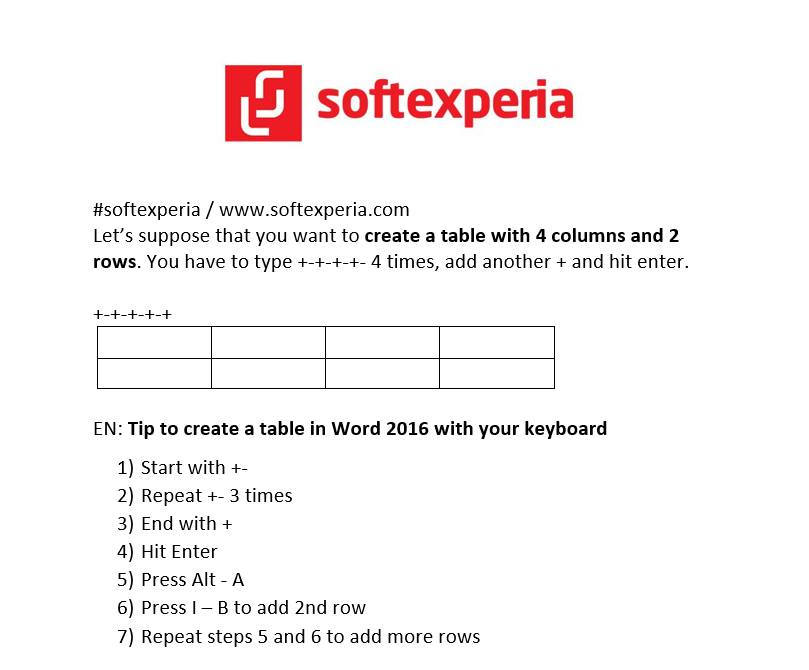
#softexperia / www.softexperia.com Let’s suppose that you want to create a table with 4 columns and 2 rows in Word. You have to type +-+-+-+- 4 times, add another + and hit enter. +-+-+-+-+ EN: Tip to create a table in Word 2016 with your keyboard 1) Start with +- 2) Repeat +- 3 times 3) End with + 4) Hit Enter 5) Press Alt – A 6) Press I – B to add 2nd row 7) Repeat steps 5 and 6 to add more rows GR: Συνδυασμός πλήκτρων για να δημιουργήσεις γρήγορα έναν πίνακα στο Word 2016 1) Ξεκίνα με +- 2) Πρόσθεσε +- 3 φορές 3) Τελείωσε με + 4) Πάτησε το Enter 5) Πάτησε το συνδυασμό πλήκτρων Alt – A για να μαρκάρεις την 1η γραμμή του πίνακα 6) Πάτησε το συνδυασμό πλήκτρων I – B για να προσθέσεις 2η γραμμή 7) Επανέλαβε τα βήματα 5 και…
Create 4 Pivot Tables with a button (VBA) Sales Data Analysis Total Sales by Country Total Sales by Salesperson Total Sales by Customer Total Sales by Product Category Facebook video: https://www.facebook.com/trifon.papadopoulos.5/videos/1071587840499690 #vba #data_analysis #excel_tips #mindstormGR / www.mindstorm.gr
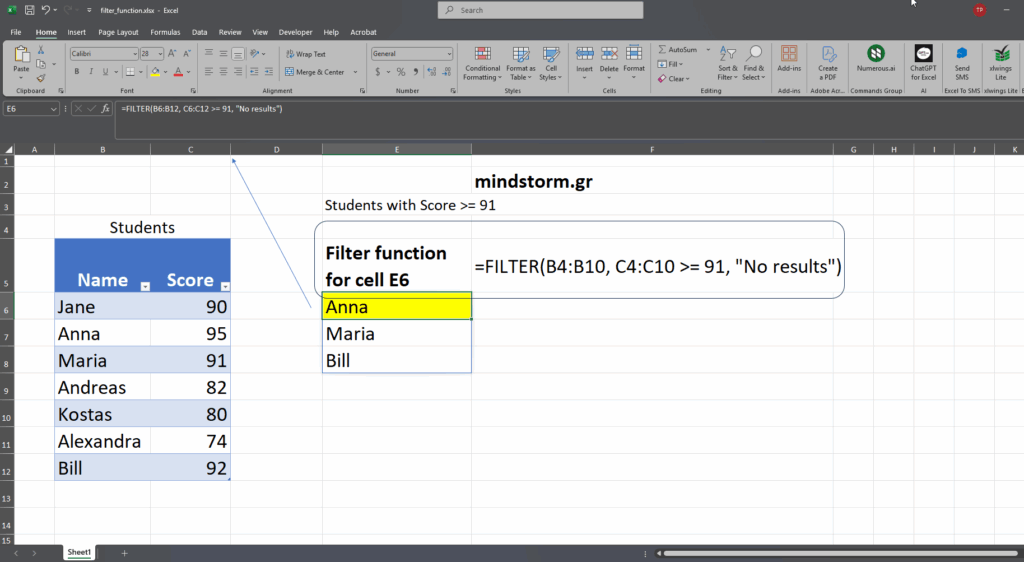
How to use the FILTER function to display students who scored 91 or higher EN – Here’s what’s happening: On the left, there’s a table labeled “Students” with two columns: Name (column B) Score (column C) The formula in cell E6 is: =FILTER(B6:B12, C6:C12 >= 91, “No results”) This formula filters the list of student names (B6:B12) and returns only those whose scores (C6:C12) are greater than or equal to 91. If no students meet that condition, it shows “No results” instead. The filtered results — Anna, Maria, and Bill — appear in column E. The text box on the right explains the filter formula and shows its syntax. The highlighted cell (E6) contains the first filtered result, “Anna”. Essentially, the image shows how to use the FILTER function in Excel to extract specific rows that meet a given condition. Download the excel file: filter_function.xlsx *Important This is the right…
Αυτά είναι τα 44 επαγγέλματα που δεν θα γλιτώσουν από το ΑΙ Ποια είναι ακόμα ασφαλή Τα AI βίντεο που πλέον απεικονίζουν ότι μπορούμε να φανταστούμε, και πολλές φορές δεν καταλαβαίνουμε καν αν είναι fake, μας προκαλούν ανησυχία. Τώρα, που η τεχνητή νοημοσύνη εισβάλλει και στον χώρο εργασίας, άλλα επαγγέλματα είναι ασφαλή ενώ άλλα είναι δύκολο να «γλιτώσουν». Είναι δεδομένο πλέον πως το AI απειλεί. Είτε πρόκειται για αυτόνομα αυτοκίνητα, μεγάλα γλωσσικά μοντέλα, ακόμη και την ιατρική, υπάρχουν πολλές θέσεις εργασίας που ενδέχεται να κινδυνεύουν από την τεχνολογία. Ενώ λοιπόν, πολλές θέσεις εργασίας κινδυνεύουν, ο ειδικός Robert Phelps έχει μοιραστεί μερικές θέσεις που ενδέχεται να κινδυνεύουν λιγότερο από την αντικατάστασή τους από την τεχνητή νοημοσύνη. Τεχνητή Νοημοσύνη: Οι θέσεις που κινδυνεύουν λιγότερο Ποιες είναι λοιπόν οι θέσεις εργασίας που ενδέχεται να διατρέχουν μικρότερο κίνδυνο από ό,τι νομίζετε; Ένας τύπος επαγγέλματος είναι οι θέσεις εργασίας που απαιτούν ενσυναίσθηση. Ωστόσο, ο ειδικός συμπλήρωσε: «Είναι δύσκολο να πούμε με…