

How to Replace Excel’s Boring Dropdown with Something Better
| FIND AND FILL AS YOU TYPE IN FIELDS “Standards” and “Special Characteristics” |
Excel’s regular dropdown lists are useful… but let’s be honest — they’re limited.
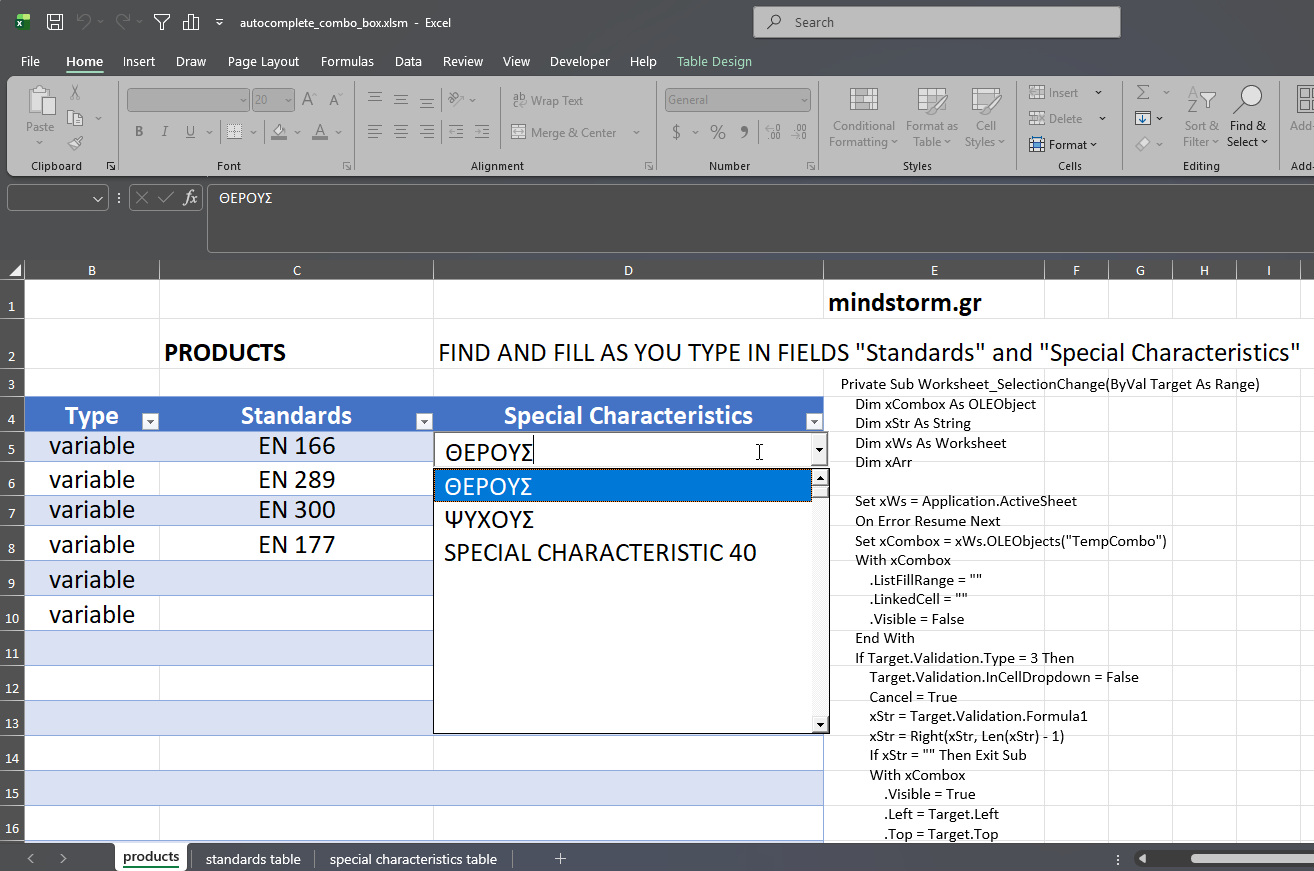
You can’t resize them.
You can’t style them.
They don’t always feel smooth to use.
This VBA solution quietly replaces Excel’s standard dropdown with a smarter one.
Here’s what happens behind the scenes:
-
When you click on a cell that contains a dropdown list…
-
Excel hides the normal dropdown.
-
A smarter dropdown box appears in its place.
-
It loads the same list of options.
-
When you choose something, it fills the cell like normal.
-
Press Enter or Tab, and you move to the next cell as usual.
To the user, it feels seamless — but the experience is smoother and more flexible.
Why This Is Useful
This approach is great when you want:
-
A more polished interface
-
Better control over dropdown behavior
-
Larger or more user-friendly lists
-
A more “app-like” Excel experience
It’s especially helpful in dashboards, forms, or shared workbooks where usability matters.
In Plain English
This code makes Excel’s dropdown lists smarter by temporarily replacing them with a more powerful version whenever you click on one.
No change to your data.
No change to your layout.
Just a better user experience.
- Download the file autocomplete_combo_box.zip
-
Unzip the file.
-
Open
autocomplete_combo_box.xlsmin Excel. -
If prompted, click Enable Content to allow macros to run.
YouTube
Optional Extra Step (If You Want to Be Thorough)
If you see a security warning:
-
Go to File → Options → Trust Center → Trust Center Settings → Macro Settings
-
Enable macros (or add the folder to Trusted Locations)


Comments are closed.